

-
Physics System

Physics System
PhysX is the current physics system in iClone 8, it can simulate rigid body physics and soft cloth physics. This physics system is same as iClone 7’s. Kindly refer to the manual pages:
Rigid Body Simulation
https://manual.reallusion.com/iClone-8/Content/ENU/8.0/57-Physics/The_Basics_of_Rigid_Body_Simulation.htmSoft Physics for Cloth & Hair
https://courses.reallusion.com/home/iclone/object-animations
https://manual.reallusion.com/iClone-8/Content/ENU/8.0/57-Physics/The_Basics_of_Soft_Body_Simulation.htm?Highlight=cloth%20physicsSome ideas for getting custom motions
https://tips.reallusion.com/2023/09/30/some-ideas-for-getting-custom-motions/ -
Preventing Characters from Passing Through Grass, Leaves, and Rocks in iClone 8

Preventing Characters from Passing Through Grass, Leaves, and Rocks in iClone 8
When creating a forest scene in iClone 8, you may notice characters running through grass, leaves, or rocks without proper collision. This usually depends on the asset format you are using.
1. Why Some Grass Has No Collision
For instance, Tthe Total Plants 2: Botanical World pack mainly uses iGrass format, which:
- Has no collision mesh
- Cannot be set as Static/Dynamic
- Cannot trim NavMesh directly
- Does not support physics interaction
- iGrass file cannot be exported as FBX
That’s why characters pass through it.
In contrast, the grass used in this demo: https://youtu.be/s2CHj5bxC2E?si=nfDUDedXyE5-jo0o&t=292
Apocalyptic London is iProp-based and supports Soft Cloth physics, allowing grass to react when characters walk through it.
2. Workaround for iGrass defection in Motion Director
If you must use iGrass:
- Create a Box (Create → 3D Block → Box)
- Scale it to overlap the grass area
- Generate NavMesh
- Trim the NavMesh with the box
- Set the box to Dummy in Modify panel
This creates a hidden collision proxy.
Note:
For natural terrain movement, using Motion Director is recommended.
It automatically follows NavMesh and avoids obstacles, making it more efficient than manually creating a path.
-
Revolutionizing Digital Simulations: A Deep Dive into iClone 8.7 Motion Planning
Revolutionizing Digital Simulations: A Deep Dive into iClone 8.7 Motion Planning
The release of iClone 8.7 introduces Motion Planning, a powerful plugin designed to automate human behaviors for complex digital simulations. By providing intuitive tools for human-machine interaction, this technology allows creators to build realistic digital twins, optimize industrial operations, and generate high-quality data for AI training.
The Shift from Manual to Autonomous Workflows
The defining difference between traditional animation and the new Motion Planning system lies in automation. In a traditional Motion Director workflow, users must manually queue tasks for every individual character—a process that is repetitive and cannot be saved for future use.
In contrast, the Motion Planning system is driven by instructional nodes running in the background. Once a simulation is launched, characters automatically move to assigned props and perform complex tasks without any manual input. This allows for a “set it and forget it” approach to simulation building.
The Brain of the System: The Graph Editor
At the heart of this technology is the Graph Editor, a node-based interface used to build behavior logic. This tool allows users to chain actions, set conditional logic, and utilize Intelligent Decision Nodes. These nodes enable agents to evaluate their environment in real-time through five key checks:
• Check Position: Triggers actions when an individual reaches a specific spot.
• Check Placement: Determines if a target position is already occupied to ensure seamless flow.
• Check Distance: Evaluates proximity between individuals and interaction points.
• Check Trigger Zone: Controls behaviors based on entering or exiting defined areas.
• Check Boolean: Uses custom true/false conditions for complex, multi-step logic.
Rapid Deployment with MP Sets
To streamline the creation of large-scale environments, the system utilizes Motion Planning Sets (MP Sets). These are ready-to-use templates that bundle “digital doubles,” interactive props, and logic blueprints.
• Randomization: Users can quickly replace dummy characters with realistic actors by using Matching Tags that sync with the ActorCore library.
• Customization: Placeholder props can be swapped for 1:1 functional industrial models while maintaining all interaction logic.
• Scalability: Multiple MP Sets can be connected to simulate entire production lines or massive crowd flows.
Practical Applications for Industry
Motion Planning is more than just a visual tool; it is a solution for practical simulation workflows:
• AI & Machine Learning: It generates large-scale 3D ground-truth data to help AI models detect abnormal behaviors and predict human actions.
• Evaluation & Optimization: Businesses can instantly simulate layout changes and quantify efficiency gains by comparing task durations before and after adjustments.
• Training & Demonstration: It creates clear, intuitive instructional videos for complex workflow steps.
Advanced Control and Recording
The plugin also introduces the Fly Cam, which allows for precise camera movement using keyboard and mouse controls. This can be recorded simultaneously with character actions. To ensure professional results, the Curve Editor includes an “Optimize Curve” function to smooth out any camera stuttering, resulting in fluid, stable footage for final showcases.
-
FashionGen – AI Empowered for generating clothes textures and Logo

FashionGen – AI Empowered for generating clothes textures and Logo
FashionGen is a powerful AI-assisted plugin for Reallusion’s Character Creator for CC4 & CC5 that elevates 3D clothing design.
It brings intelligent generation and exploration of materials, pattern creation, styling ideas, wear-and-tear detailing, and more into one unified workflow, just like AI assistant helps you create and refine 3D garment textures and styles faster and more creatively.AI-Powered Design Tools
- Pattern & Material Generation:
Generate seamless clothing patterns and surface materials from text prompts or reference images. - Smart Palette Sampler:
Extract and refine color palettes from reference images for consistent styling. - Detailing & Aging Effects:
Add realistic wear, wrinkles, patches, zippers, and other detailed clothing elements using AI guided generation and brush controls. - Custom Decals:
Import your own PNG assets or generate AI decals (logos, graphics) and apply them with material assignments.
Layer-Based Workflow
- Each clothing texture layer can be individually adjusted, scaled, and blended with physically based rendering (PBR) effects.
Flexible Masking & Editing
- Use Color ID masks and brush tools to define specific regions for AI generation or manual refinement.
Automatic Material Generation
- Automatically generate PBR and normal maps from any image, turning it into usable 3D textures.
- Pattern & Material Generation:
-
Generating motion with AI Video Mocap in iClone

Generating motion with AI Video Mocap in iClone
iClone Video Mocap adopts an AI-powered advanced video-to-motion generation process that cuts down on production time and costs by bypassing the use traditional mocap devices. The following diagram illustrates how to generate motion from a video and convert it to Reallusion motions applicable for humanoid iC/CC characters.
iClone Video Mocap is able to detect the target actor in the video with some proper guidance from the user. The Video Mocap detects the target actor and its full body part in the video for motion capture. Follow the instruction below to capture motion from any clear actor in your video.
Product page: https://manual.reallusion.com/iclone-video-mocap-plug-in/content/welcome.htm
Online Manual: https://manual.reallusion.com/iclone-video-mocap-plug-in/content/welcome.htm
-
Managing content with Smart Content Manager

Managing content with Smart Content Manager
Smart Content Manager (SCM) is a new system that allows you to browse, manage, and download all your digital content in the same place. It is useful for aggregating assets used among multiple users in a project.
1. Finding and Installing Content
• Content Status: If a thumbnail is grayed out, it means you have purchased the content but it has not been installed on your local machine. If you see a little green cloud icon on a grayed-out thumbnail, you own the content but have not downloaded it yet.
• Downloading: You can multi-select items, right-click, and choose “install content” to queue them for installation all at once.
• Views: You can switch between the Pack tab (content organized in bundles) and the Item tab (individual assets, generally used for custom folder creation). When you download content, the SCM automatically switches back to the Pack view.
2. Using Old (Legacy) Content
If you have assets from previous versions (like CC3 or iClone 7), there are two ways to bring them into the new SCM:
1. Drag and Drop: You can drag files from your PC’s Explorer directly into the SCM. This is the fastest way, but it duplicates the files. This method is only recommended for custom assets, as other asset types will lose their pack information.
2. Linking (Recommended): Use the down arrow menu on the right of the SCM and select the “Link” option. This allows you to access all previous CC3 content. Linking is recommended because it avoids duplicating files, saving redundant hard drive space, and it maintains the original pack information. You only need to do this linking process once. To find your linked CC3 custom content, you must change the source from the dropdown menu to “CC3 Custom Content”.
3. Organizing Your Own Assets
• Thumbnails: The thumbnail reflects your current camera view. To get a better result, you can right-click on the saved item and select Capture Thumbnail.
• Custom Paths: You can define a custom file path in the Content Manager settings. If defined, all your custom content will be saved there.
• Filter: You have the option to apply a number of simple search filters.Therefore, the main use of filters is to enable efficient searching and categorization of your digital assets within the SCM.
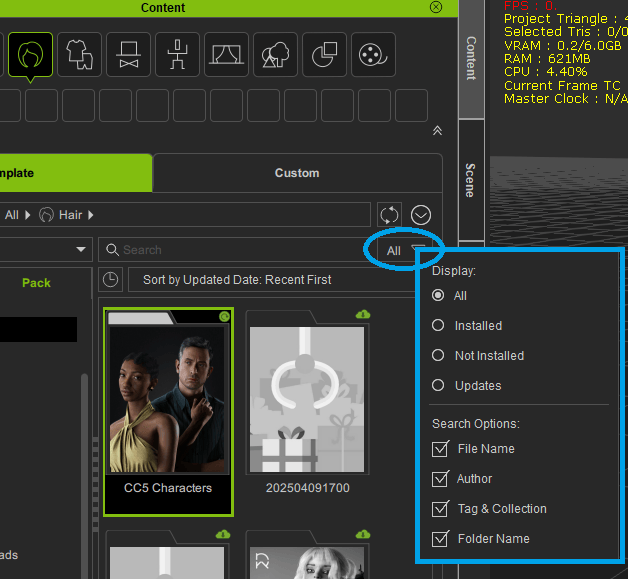
• My Collection & Tag : Check here: Organizing Content by Collection

Add / Remove Collection in Collection Editor panel 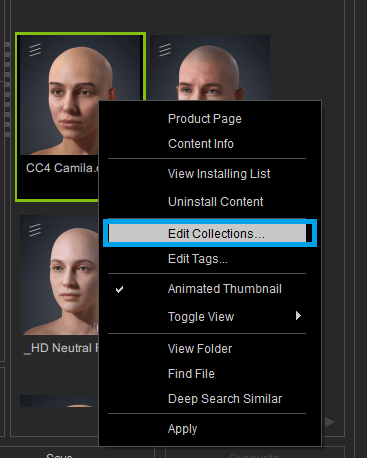
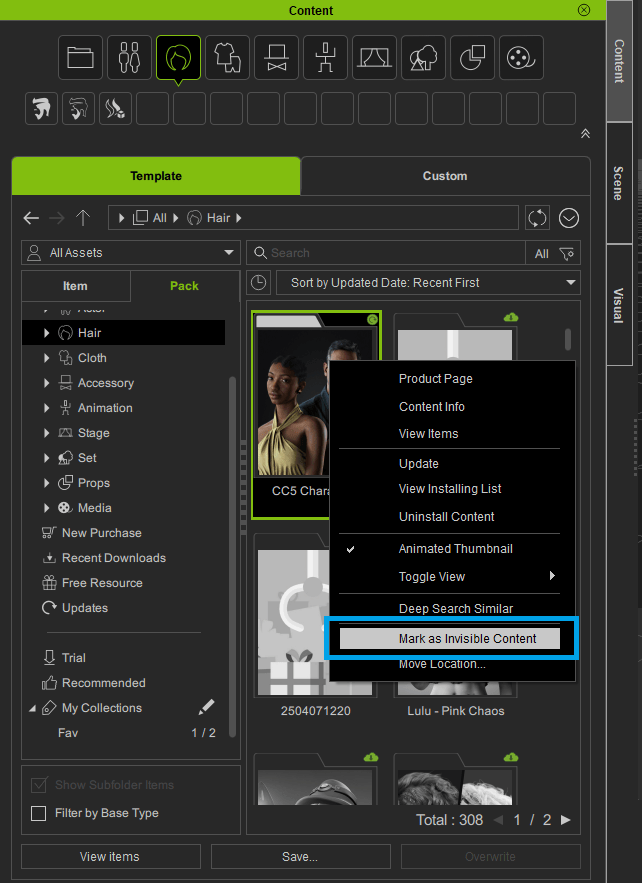
Add specific content to existing Collection • Mark as Invisible Content: You can even hide a content with Content Manager, kindly refer to the manual page about Hide & Show content: https://manual.reallusion.com/content-manager/2.0/03-pack-view/hiding-contents.htm
4. Backing Up and Transferring Content
• Backup: All content is stored in the cell pack folder. To back up your content, you must first copy the entire cell pack folder.
• Restore: On a new PC, copy the
cell packfolder to the same folder structure. Then, go to the SCM settings and use the plus symbol (+) to navigate and link to the copiedcell packfolder.• Exporting Data: You can export content tags or developer packs using the “export data” option in the SCM menu. Be aware that external files like linked textures or videos will not be transferred over when exporting packs.
5. Others
• Download Actorcore content: Content Manager can download Actorcore purchased content as well, refer to: https://kb.reallusion.com/Product/53042/How-to-Download-Content-from-ActorCore-into-iClone-8
-
Quick creating every characters | Character Creator 5 AvatorMixer
Quick creating every characters | Character Creator 5 AvatorMixer
Actor Mixer in Character Creator 5 (CC5) is a powerful tool for rapidly creating diverse human character appearances, from realistic to cartoonish, by independently mixing and blending head, body, and facial features.
Key features for quick character creation include:
• Modular Blending: Mix specific facial details like eyes, nose, and mouth, or blend overall head and body shapes.
• Content Richness: Utilizes content from the CC5 Character Pack and ActorMixer Pro, which offers over 40 high-quality 3D scanned heads and “mixer-ready assets” crucial for realistic details.
• Skin Application: Apply various head and body skins in 2K or 4K resolution for refined details, supporting both humanoids and stylized characters.
• Achieving Realistic Characters: Leverage 4K skins and high-quality 3D scanned heads from ActorMixer Pro for detailed results.
• Achieving Cartoon Characters: Start by adjusting a base character with standard sliders into a “big cartoon style” (e.g., big eyes), and then use Actor Mixer to blend. This preserves the base style, allowing for quick generation of consistent family characters.
• Non-Destructive Workflow: Mixer sliders (with green icons) ensure smooth, predictable, and non-destructive blending results.
• Advanced Flexibility: Allows blending even when base characters have expressions or poses, carrying over corrective effects and preserving base style adjustments.
-
Creating CC character with generative AI tool
Creating CC character with generative AI tool
For realistic character, it is easy to create a character with Character Creator and Headshot plugin (Image Mode).
There is a lot of AI tool for generating realistic human photo, such as AI-Generated Faces Images or Canva Free Online AI Face Generator.
Once generating the human face photo, kindly follow this manual page to create CC character with Headshot plugin (Image Mode) by just a few clicks.
However, Headshot Image Mode can only recognize real human face but not for stylish toon face.
If we do not need a face rig character for viseme, we can just import the custom character model into Character Creator 4, rig it quickly with AccuRIG. Or use the little tool AccuRIG on Actorcore. Kindly check this tips article more the detailed steps.
But how can we create a talkable toon character with AI tool?
There is another mode on Headshot plugin – Mesh Mode. We can turn every face mesh into CC character using Headshot plugin (Mesh Mode).
Step 0 – Preparing and Creating face mesh
If you already had a face mesh, skip this step.
If you have a character face image only, you can turn the 2D image into 3D mesh with any AI tools, Tripo AI is one of the options in this case. Kindly also refer to this manual page for Preparing Source Models.
Different Mesh Types: https://manual.reallusion.com/Headshot_for_CC/ENU/2.0/06-Mesh-Mode/Different-Mesh-Types.htm
Step 1 – Import into Character Creator Headshot plugin (Mesh Mode)
Follow these steps in this page about Quick Mesh Guide: https://manual.reallusion.com/Headshot_for_CC/ENU/2.0/06-Mesh-Mode/Quick-Guide-Mesh-Mode.htm
For full body process, check this manual page: https://manual.reallusion.com/Headshot_for_CC/ENU/2.0/06-Mesh-Mode/Stylized-Mesh-Process.htm
Or the corresponding tutorial video: https://courses.reallusion.com/home/character-creator/pipelines-and-render/headshot?v=making-stylized-characters-with-headshot-2-0-|-headshot-2-0-plug-in-tutorials
Once we finish the ALIGN POINTS with Headshot, the CC character will be created.
Step 2 – Animating Lip-sync with AccuLIPS in iClnoe 8
After fine-tuning the character in Character Creator 4, send it to iClone 8 for further animation. The character is face rig ready, so you can use AccuLIPS directly, or mocap with facial mocap devices with Motion Live in iClone 8.
Depends on your needs, select the mocap equipment that is suitable for you. Please see this comparison chart that we supported for now:
https://mocap.reallusion.com//iclone-motion-live-mocap/gears.html#gear-comparison
(Note: We sell plugins to use the equipment. We do not sell any equipment ourselves.)
Now, check the steps for AccuLIPS in this manual page or the tutorial page.
Step 3 – Done
In conclusion, now AI tools really help us to finish the early preparation work, we can use a few prompt words to generate an image, and then turn it to a 3D mesh. However, the current AI cannot replace the traditional 3D process due to the uncontrollable steps. We still need to sculpt a custom 3D model with Blender, Maya and etc., it is essential to use both AI and 3D tools together for the better result. So here is an idea for combining those tools to speed up the process.
-
3D Textures – PBR Shader Type Maps
3D Textures – PBR Shader Type Maps
PBR (Physically-Based Rendering) uses consistent lighting behavior to make materials look realistic in any environment. Stick to metal-rough or spec-gloss workflows and make sure your maps are calibrated properly (e.g., roughness should be in linear space, not gamma corrected).
Each material has 9 map channels that collaborate for materials of the PBR Shader Type. Open Texture Settings section in the Modify > Material tab to see these channels.

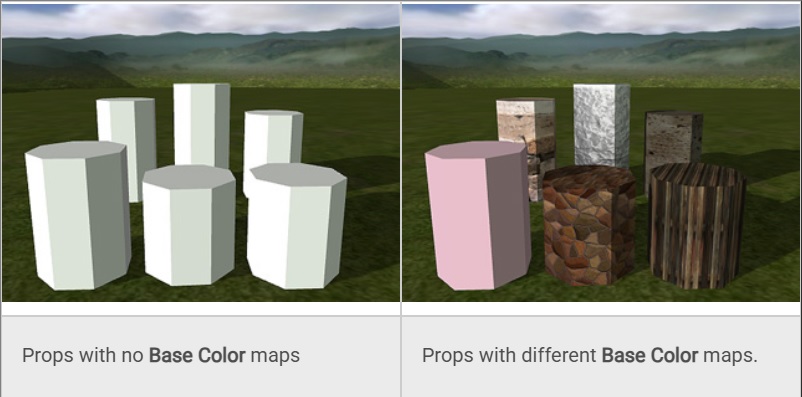
Base Color map
- The most frequently used texture mapping method. It wraps the bitmap image onto the 3D geometry surface while displaying its original pixel color.
- Any bitmap image, such as scanned images or images captured by digital camera, can be used as diffuse map to represent photo-realistm.
- Users can also use image software to make pre-rendered texture effects such as shadow, bevel, bump, lighting or weathering effects. This approach can effectively simulate real-world effects while greatly saving system resources and rendering time.
Bump map
- When you import an image to the Bump channel, a dialog will request for the image format. Choose the Bump option if the image you want to import is in a grayscale mode.

Normal map
A Normal map is made from a high polygon model. Its color representation will affect surfaces like a regular bump map while providing higher degrees of detail.

AO Map (Ambient Occlusion)
This texture mapping method enhance the concavity and convexity of an object by appending additional shading around the seams or overlapping edges.

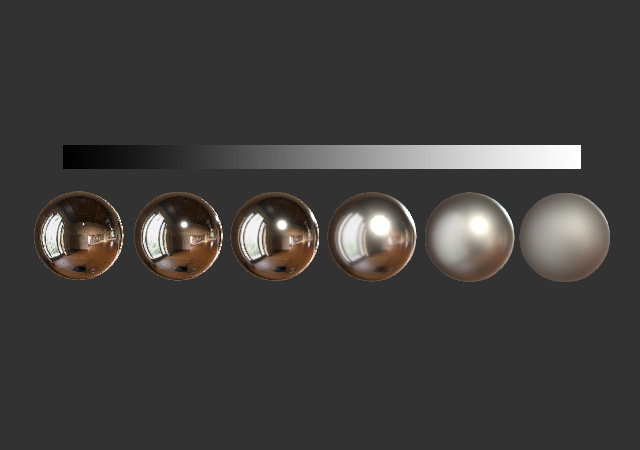
Metallic Map
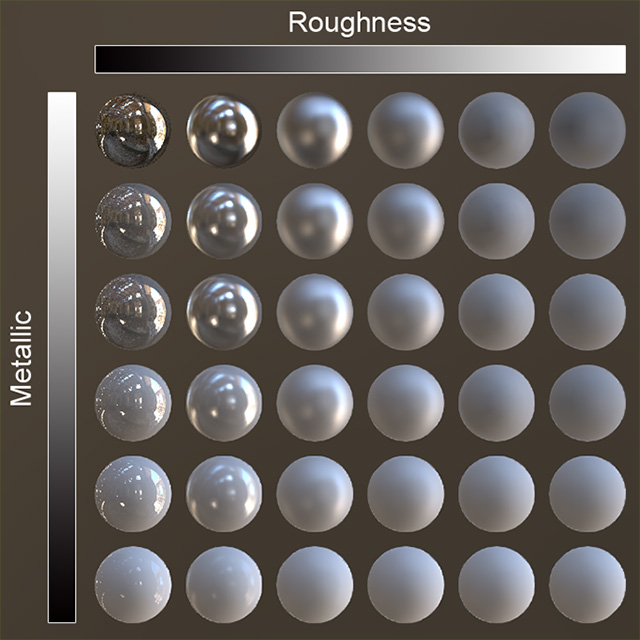
Metallic maps can determin the reflectivity of a surface ranging from completely insulate to metallic. White parts of the map stand for reflectivity while black parts of the map stand for diffusion.

Roughness Map
Roughness map is used to describe the coarseness from the definition of the microsurfaces. The surfaces mapped with white are relatively rough while the ones mapped with black are perfectly smooth.
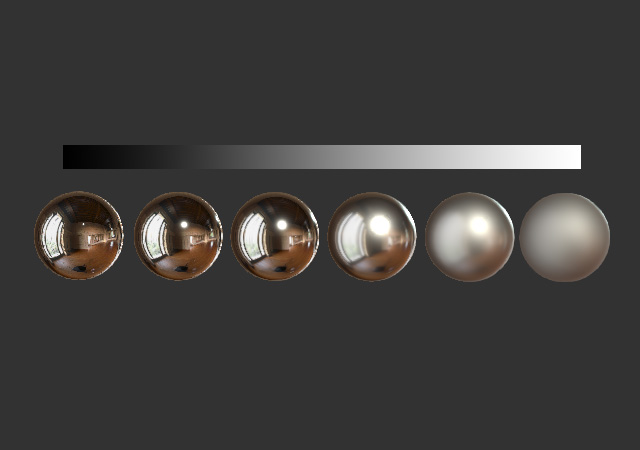
The combinations of the Metallic and Roughness can thus depict almost every material in the real world.
Displacement Map
You can create monochrome image maps with popular image-editing tools such as Photoshop. By using grayscale height maps, you can push and pull the surface of a 3D model to achieve the ideal look you desire.
Using a vector-based displacement map can produce undercut details on your model. Unlike the height displacement map (monochrome) simply stretches out geometry, vector displacement produces refined curves and edges, creating an unparalleled sense of detail to your model.

Glow map
- This texture mapping technique allows users to control the glow shape, color and strength.
- Glow maps will blend with your original diffuse maps, so the lighter the diffuse color (or glow color), the stronger the glow effect.
- A bright diffuse map in combination with a bright glow map might cause overexposure.

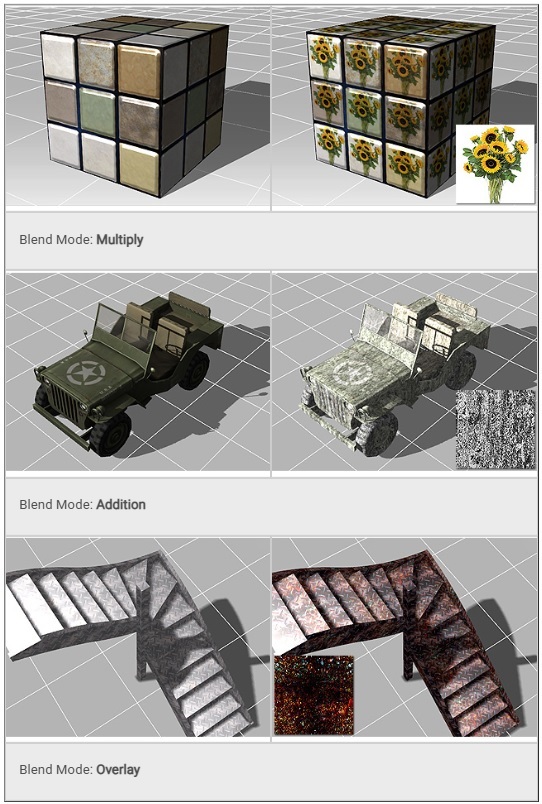
Blend Map
You may add any kind of images as the Blend map to blend with the Diffuse map, which increases the details and subtleties of the object. iClone also provides three methods, Multiply, Addition and Overlay, for blending.
-
iContent vs Standard License – Deep Search in Content Manager
iContent vs Standard License – Deep Search in Content Manager
Standard License is a content license for users whom authorized to export the content as 3D format.
iContent is a valuable option for users who render the project in iClone.
Traditional search in iClone / Character Creator:
Kindly refer to the screenshot below, on the left part, searching content with specific keyword in the search bar (the step 4th) can find content with a simple way. Usually we can quickly to find the owned content.
For advanced AI search, we can use Deep Search, refer to the right part in the screenshot below. With Deep search (AI search), you can find all the content on our Content Store, Marketplace and Actorcore, with any related keywords or a reference picture. It is a powerful tool to search your library, especially for materials and motion. (Yes! you can even preview the motion)
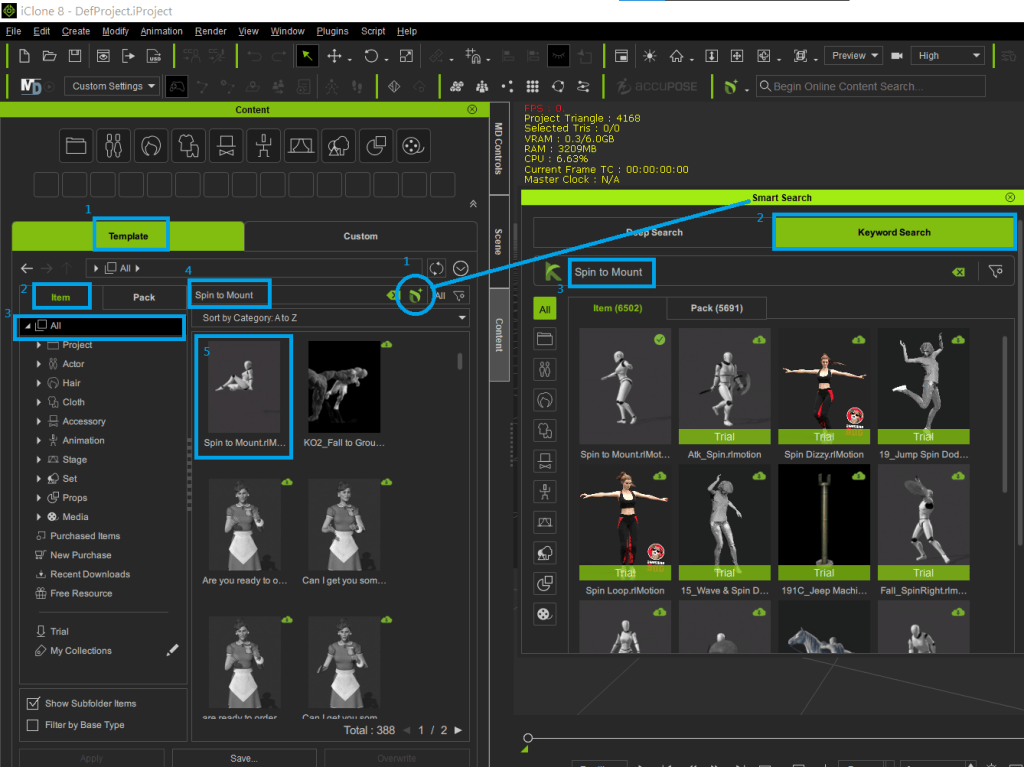
For more about Content Manager and Deep Search, see this tutorial page: https://courses.reallusion.com/home/ai-smart-search/smart-search-for-ic8-cc4
With iClone 8.54 or above, Character Creator 4.54 or above, users can purchase content in the application with DA points and Bonus points. See the tutorial here:
TAG
actormixer AI AI Generation askfunction Cartoon Animator cc5 Character Creator character creator 5 content content manager creation Custom Character iClone Idea Import Particle Performance tutorial
nEW POSTS
- Physics System

- Preventing Characters from Passing Through Grass, Leaves, and Rocks in iClone 8

- Revolutionizing Digital Simulations: A Deep Dive into iClone 8.7 Motion Planning
- FashionGen – AI Empowered for generating clothes textures and Logo

- Generating motion with AI Video Mocap in iClone

- Managing content with Smart Content Manager

- Quick creating every characters | Character Creator 5 AvatorMixer
- Creating CC character with generative AI tool
 Reallusion Tips